Git
- Why Sometimes git checkout fails
- All About Branches
- Remove all untracked files
- Pull in changes to feature branch from master
- Git rebase
- When does a merge conflict happen?
Why Sometimes git checkout fails
Did you ever wonder why when you run git checkout <branch name> from say a feature branch to the main branch it will fail? Well there could be many reason, the primary reason is that you have some local changes that you didn't commit / stash before switching to the other branch, which can result in those changes in being lost.
This is why Git is trying to warn you when you get the message like this:
error: Your local changes to the following files would be overwritten by checkout:
        player-2
Please commit your changes or stash them before you switch branches.
Aborting
But sometimes this doesn't happen?
git checkout will sometimes work if you have some uncommitted changes, but when?
Well if you spawn off a branch and you make some local changes WITHOUT committing them, because the git history between the two branches are the same, you are free to switch between and carry those changes between the two branches without getting the error.
It also work with new untracked files that you have created, because they are technically not part of the index / history, so you can switch between branches and carry those changes
However, if you committed some changes to the branch on a particular file, making the two branches not aligned anymore and then you try to carry some changes to the other branch then Git will stop you from doing so, if it is regarding the same file that was committed.
It doesn't matter which side it is from, if you're on master and spawned off feature-a branch.
- Say you committed to
masterone commit and you edited the same file onfeature-awithout committing, and want to checkoutmaster, it will prevent you from doing so - Say you committed to
feature-aone commit and you edit the same file onmasterwithout committing, and want to checkoutfeature-a, it will prevent you from doing so
It is regarding the same file that was committed, this is because the local change from the branch will be overwritten making you lose your changes!
All About Branches
Branch name inconsistency
Sometimes the branch name shown in git are inconsistent.
For example, the output for git branch -a vs git branch -r. The remote-tracking branches will be prefixed with remotes/ in git branch -a. However, the remote branch in git branch -r won't.
Remote
A remote you can just think of as a repository location that is somewhere else on another machine. You refer to remotes using a URL and that's where the remote repository is stored.
You want to store your repository on another machine for backup and team collaboration purposes.
Remote name
Names like origin that you set up for your remote tracking repository just refers to a URL that you remote repository lives under. If you are going to be referring to it with URL every time it will be super time consuming. Think of it just as alias to URL.
Branches on your machine
You got three types of branches on your local machine non-tracking local branches, tracking local branches, and remote-tracking branches.
On the remote machine (remote repository), you only got one type of branch.
1. Local branches
Running git branch you will get a list of all local branches on your machines.
.git/refs/heads/ file also contain list of local branches.
You got two types of local branches.
1.1 Non-tracking local branches
These branches are not associated with any remote repositories, not "synced" per se.
You would create one by running git branch <branchname> or git checkout -b <branchname> to create and switch to the branch.
These branches are also the one that you need to set up upstream for, i.e. if you do git push it will complain about not having a upstream and you would have to run git push -u <remote> <branch> in order to set it up.
1.2 Tracking local branches
Tracking local branches are associated with another branch, usually a remote-tracking branch.
You can check which one of your local branches are tracking branches using git branch -vv:
git branch -vv
  feature/b/lol a54cf89 [origin/feature/b/lol] Create player
* kms           a54cf89 Create player
You can see that my local feature/b/lol branch is tracking origin/feature/b/lol.
Tracking local branches are useful in the sense that they allow you to run git pull and git push without having you to specify the remote and the upstream branch to use. If you don't have the tracking branch set up and you try to git push, Git will complain about not having an upstream branch, you would just set it using -u <remote> <branchname> and then it will set the tracking branch for you automatically.
2. Remote-tracking branches (still on your local machine)
To see the list of remote-tracking branches on your machine by running git branch -r
.git/refs/remotes/<remote>/ contains the list of remote-tracking branches
They are a "local" copy of branch that the remote repository contains. You would be updating these branches by using git fetch or via git pull. This is what your tracking local branches will be using to compare and see whether you are behind or ahead of your remote repository.
Although remote-tracking branch is stored locally on your machine, it isn't really referred to as a local branch.
Git branch cheat sheet
- To delete a local branch (regardless of tracking or non-tracking):
git branch -d <branchname> - To delete a remote-tracking branch (not done often):
git branch -rd <remote>/<branchname> - To create a new local non-tracking branch:
git branch <branchname>
Remove all untracked files
To remove all unwanted un-tracked files you can just run:
git cleanUse it with -n for a dry run to see the list of files that it will be removing.
Use it with -d to also remove directories, can be used with -n.
Pull in changes to feature branch from master
Say you branch off from the main branch and are currently working on a feature in Git. Suddenly, your co-worker pushes changes to the main branch (this is entirely possible), while you are still working on the feature branch, and you would like to have that new changes that your co-worker have pushed to main incorporated into your current feature branch that you are working on.
How do you do it? There are two ways of handling it:
1. Merge master into feature/branch
This way is the recommended way since it doesn't require force pushing the commit flow into the repository.
So how it works is that you will first git fetch in the changes that your co-worker have done from the remote repository. This will sync up the remote-tracking branches like origin/main in your repository. Remember these branches reflect the branch state in the remote repository thus their name.
Then you can just run git merge origin/main to merge in the changes that your co-worker has done.
If you want to sync up the main branch in your local repository first then you would have to run git checkout main then run git merge to pull in the hcanges from your co-worker.
Then finally you can run git merge main to merge from your local main branch instead of remote-tracking branch. Both way works it is just whether or not you want to sync up your local main branch as well.
2. Rebase feature/branch on master
This way will make your git history look cleaner without all the merge commits, but without the track that it was merged into the branch. This is less visible for tracking commit histories. However, this will require a force push if you have commits in the feature branch already and is pushed to the remote.
So again fetch the changes from the remote repository by running git fetch.
Then you would just run git rebase origin/main on the feature branch to rebase your branch on the latest remote-tracking branch changes. Or you can sync up the local main then rebase it on main, it works the same way.
Why exactly do you need a force push? This is because after you rebase the feature branch to master (incorporating those changes that your co-worker have been making) the existing commits that you have made will be rehashed! The changes will remain the same, but because those commits have different parents now the hashes will be different. Hence after you rebase to incorporate the changes and pushes to main after you will need a force push since the remote branch's history is completely different now compared to the local one. Doesn't mean it is wrong, but yea a force push is required.
A force push isn't needed if you didn't make any commits to the branch yet (so it is even with main, and so is the remote branch), it will just add in the changes from main, that is all. You can simply git push to the remote feature branch to make the feature branch stay up to date with the main.
Summary
Either way they both achieve pulling in your co-worker's change but in different ways. So pick your poison, if you like cleaner git history then go with the second method, but if you want visibility of when someone merged in what then first way would be the way to go. At the end of the day, it is just preferences.
This may or may not require you to force push
Git rebase
What is Git Rebase
git rebase is one of the two strategies in git along with git merge that allows you to integrate changes from one branch onto another.
The differences between those two is that git merge is always a forward moving change record, meaning that the past history is never changed, new changes are tied onto the branch that you want to integrate changes to as a new commit.
On the other hand, git rebase is a history rewriting feature that allows you to basically base your branch on the newer commits.
Branch background
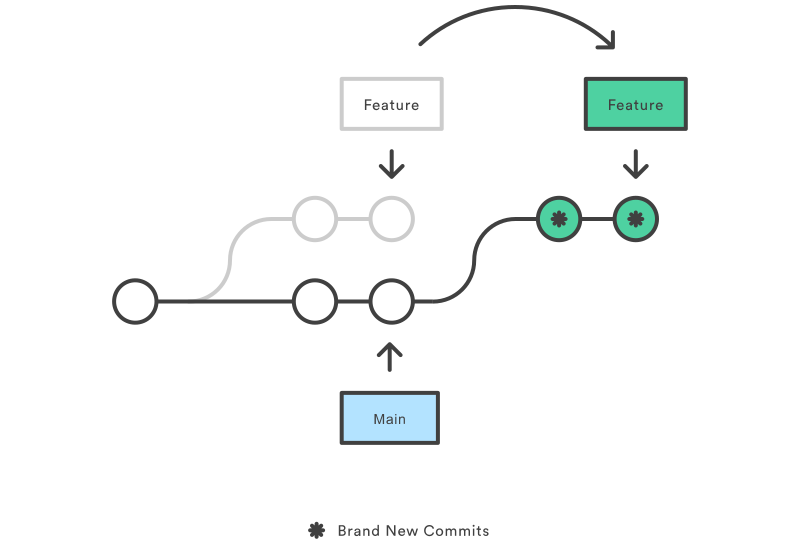
So a little bit of background for branches, whenever you spawn off a branch it is based on a point in the commit history. Let's say you are on commit A of main, then you spawn off another branch called feature-a from main, then feature-a is based on commit A.
A branch is really nothing but a commit in the git history actually. So now when your co-worker pushes changes to main while you're working on feature-a that was based on old base (commit), you want to have those changes because you think it will help with your feature, you can use git rebase to change your base (the commit that your branch is spawned off from) to be from the latest commit of main.
Why git rebase
The main reason as to why you should use git rebase is to maintain a linear project history. If you use git merge to integrate changes from main it will result in a new commit in order to tie those new changes into the feature branch, which might look ugly to some minimalist.
Git rebase allows you to avoid the extra merge commit by changing the base commit that your branch is currently basing off from, then replay the commits that you had.
How does it work
Well the command is simple is just
git rebase <base>What this will do it will automatically rebases the current branch onto <base>, it will basically take all the commits that you have committed to the current branch so far, then change the branch so that it is basing off from the newer main, then REPLAY those commits that you had committed originally to the feature branch.
Important thing to note that replaying the commits will not result in the same commit hashes. The changes are still the same per commit, but the hash will not be the same as before because the parent of each commit HAS CHANGED!
When does a merge conflict happen?
What is merge conflict
Merge conflict arises when you have two people changing the same line in a file OR if one person deleted the file but the other modified (effectively keeping that file), then you tried to integrate the changes together via either git merge or git rebase. Git cannot determine which one of the changes is correct.
The merge process will come to a halt and need the developer's manually intervention in order to proceed with the merge.
Creating merge conflict with git merge
To create a merge conflict with git merge it is relatively simple, say you are on the main branch, spawn off a branch called feature-a. As of now, main and feature-a are in sync because no commits have been made yet.
Now say in main you create a file named "lmao", and appended "this is cool" to the file. Stage it and commit it.
Now checkout into feature-a and create the same file named "lmao", but this time append "this is not cool" to the file.
You see that we created the same file for both branches, but the content they have are different and they are both at line number 1.
Now if you attempt to say merge feature-a into main now by doing git merge at main, you will get a merge conflict, because git sees that both of the branches are changing the same file at the same line, and it doesn't know which one of changes do you want.
Creating merge conflict with git rebase
Basing off from the same scenario as above, if you are currently at feature-a branch and say you want to integrate the changes that your co-worker have been making in main. If you run git rebase main you will also run into merge conflict.
But wait, isn't git rebase "replaying" the commits that you have made after it moves the feature-a branch to sync with main? Well yes, but you will have to define what "replaying" is actually doing.
Under the hood, git rebase uses git cherry-pick, which will let you add arbitrary commits to the current checked out branch. How does git cherry-pick work underneath? It internally finds the diffs and then apply the patches which is the same exact way how git merge merges. So git rebase is actually using git merge in a way under the hood, which as you know will have merge conflicts.
If you want to read more about why git rebase results in merge conflicts this is a good stackoverflow question: Link
How does git merge algorithm work?
The exact algorithm that is used is something called 3-way merge algorithm and here is the basics of how it works:
- Given two version of your code base X and Y. First find a suitable merge base B, this merge base is the common ancestor of both of the version X and Y, this can be done easily by walking up the the commits
- Perform diff of X with B and Y with B. You will get two diff patches telling you how to get from B to both X and Y.
- Walk through each of the change blocks in the diff patches, if one of the patch touches a block and the other leaves it, keep the version that had the change. If both diff patches have the same change, keep either one. Now if both patches have changes in the same spot and they don't match, mark it as a conflict to be resolved manually.
Another scenario that I encounter when you would have bunch of merge conflict is that say you're in the main branch. In the main branch you made a couple of commits that touched files A, B, C. Then you forked off from the main branch and spawned a feature branch called feature-a.
Now you go back to main branch and changed A and B and made those commits. Now let's go back to feature-a, and pretend you did some kind of upgrade which removed files A and B, and created a new file D. Now if you try to merge, feature-b into main, you will get merge conflicts because from the base commits where all three files still exists, to main it kept A and B and made some changes. But to feature-b branch, it deleted A and B and created D, Git sees that A and B are both changed but doesn't know which know of the changes you actually want, thus merge conflict.
Now let's go back to the previous previous paragraph's scenario when you touched A, B, C and forked off from main branch. Let's say from main you made a change to C and committed the change. Then switched to feature-b and did an upgrade which removed A and B. Now when you merge feature-b into main, you will NOT get a merge conflict, because from the base commit, main didn't touch A and B, only feature-b touched A and B which removed them from the version control, and Git knows that A and B should be removed and thus no merge conflict will occur.